Install your Amical phone
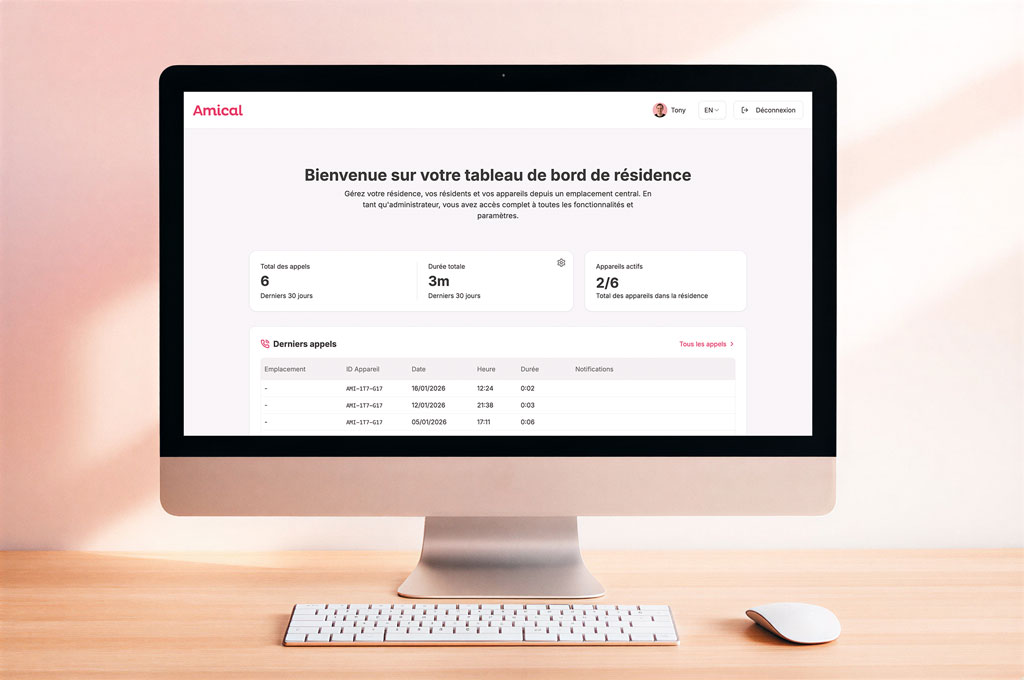
Connect to your client portal
The portal lets you:
%22 height=%2232px%22 id=%22r3FnSHSnb%22 width=%2232px%22/%3E%3C/svg%3E)
View the list of calls and notifications for detected issues
Change the companion's voice, name, and language
Trigger or schedule calls from the companion
Manage your payments and billing
Watch our installation video
Download the PDF guide
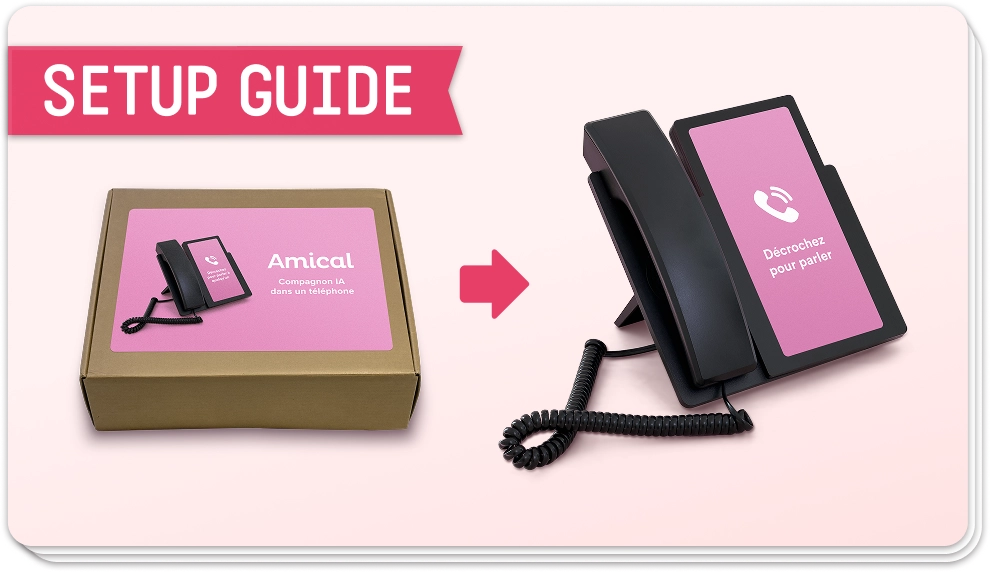
Your Amical box contains everything needed for installation
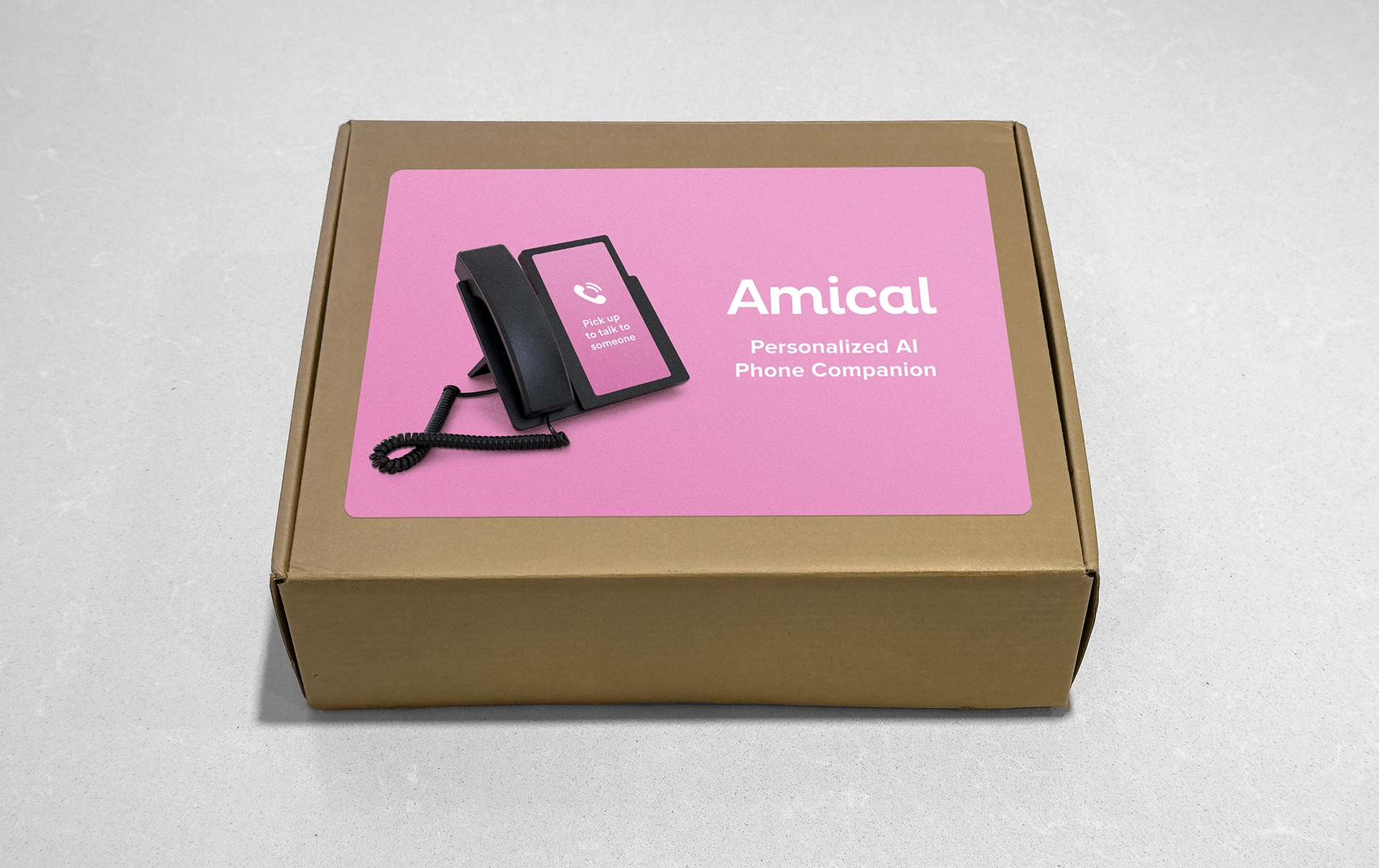
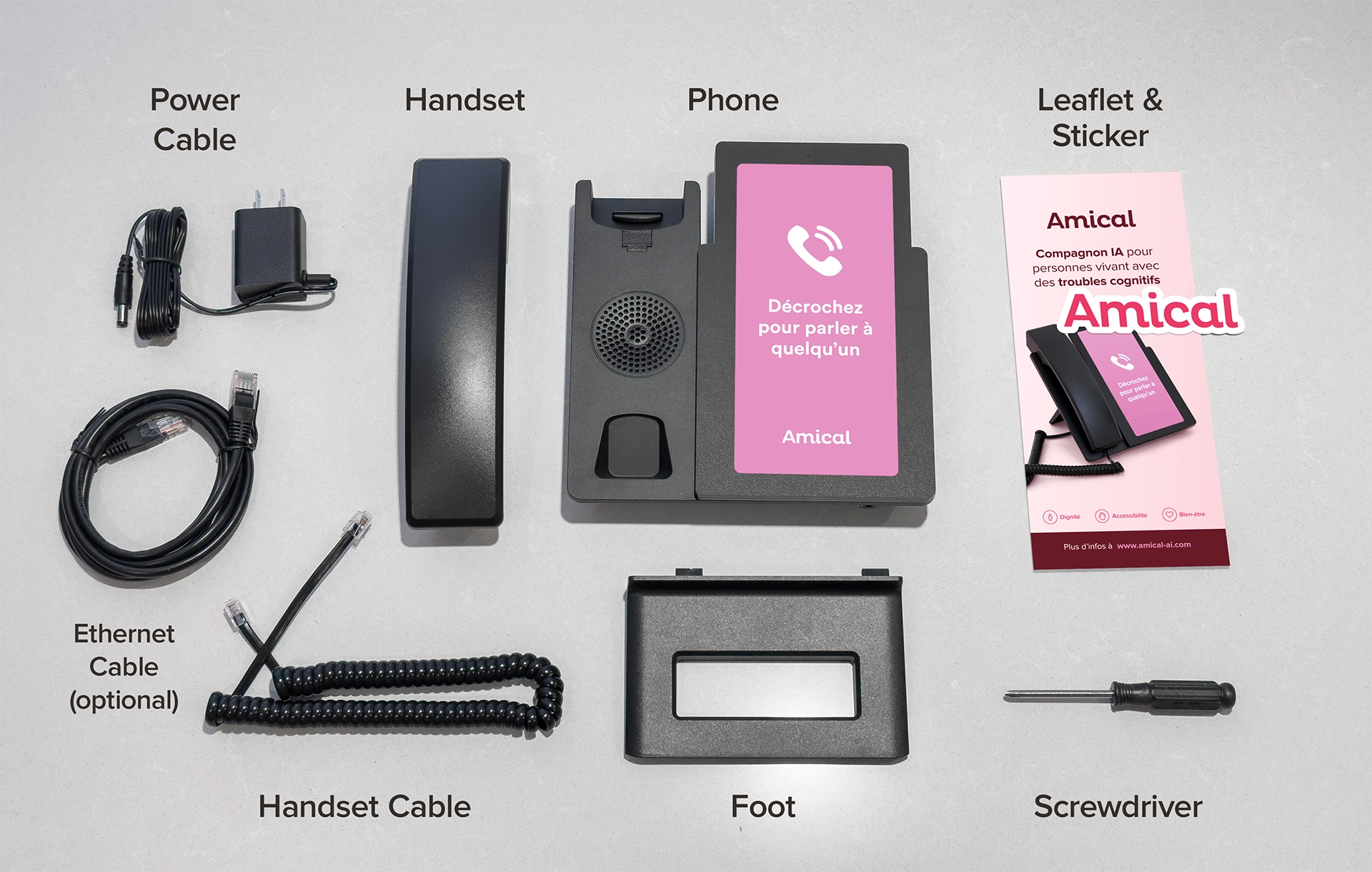
Phone assembly
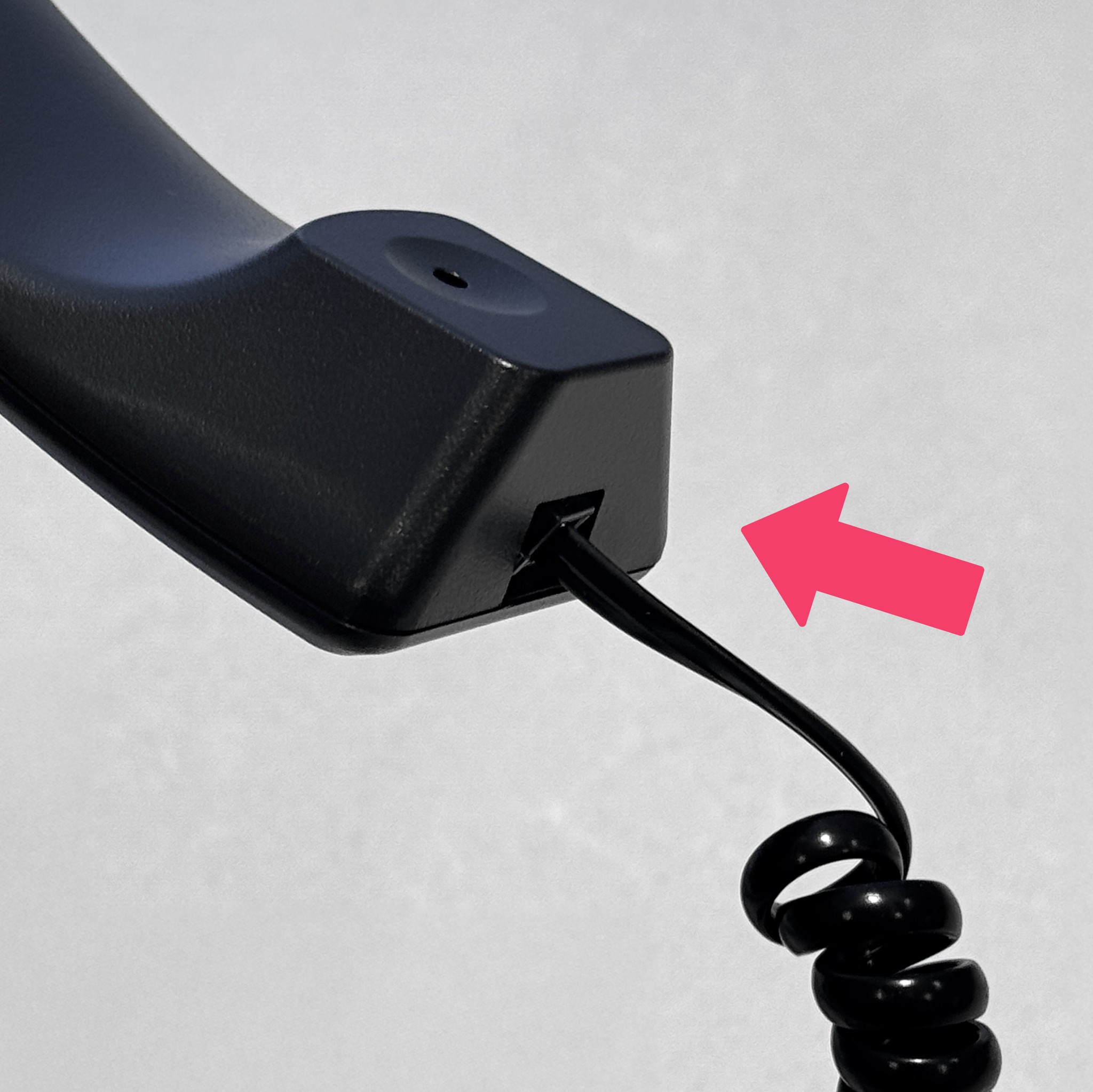
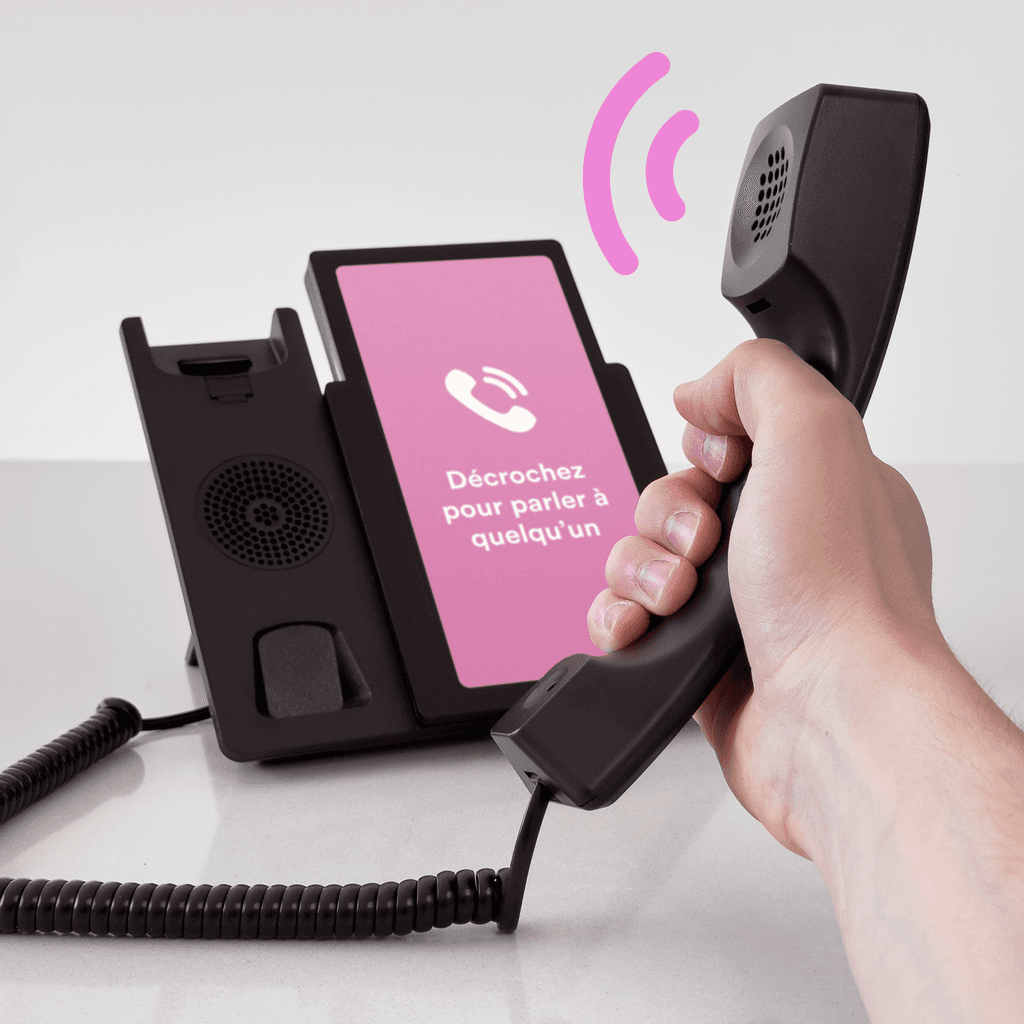
- Connect the handset cable to the handset and to the phone.
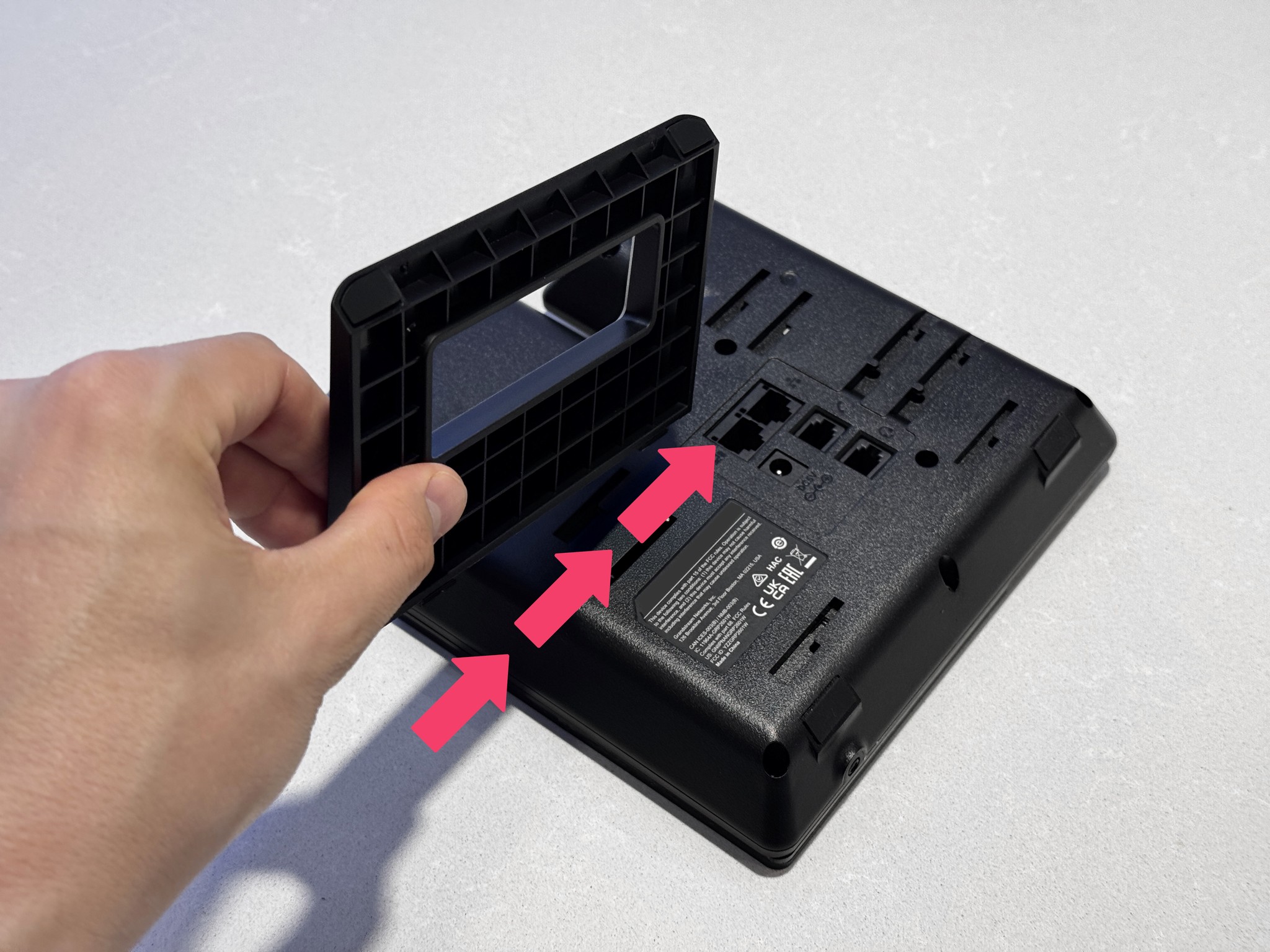
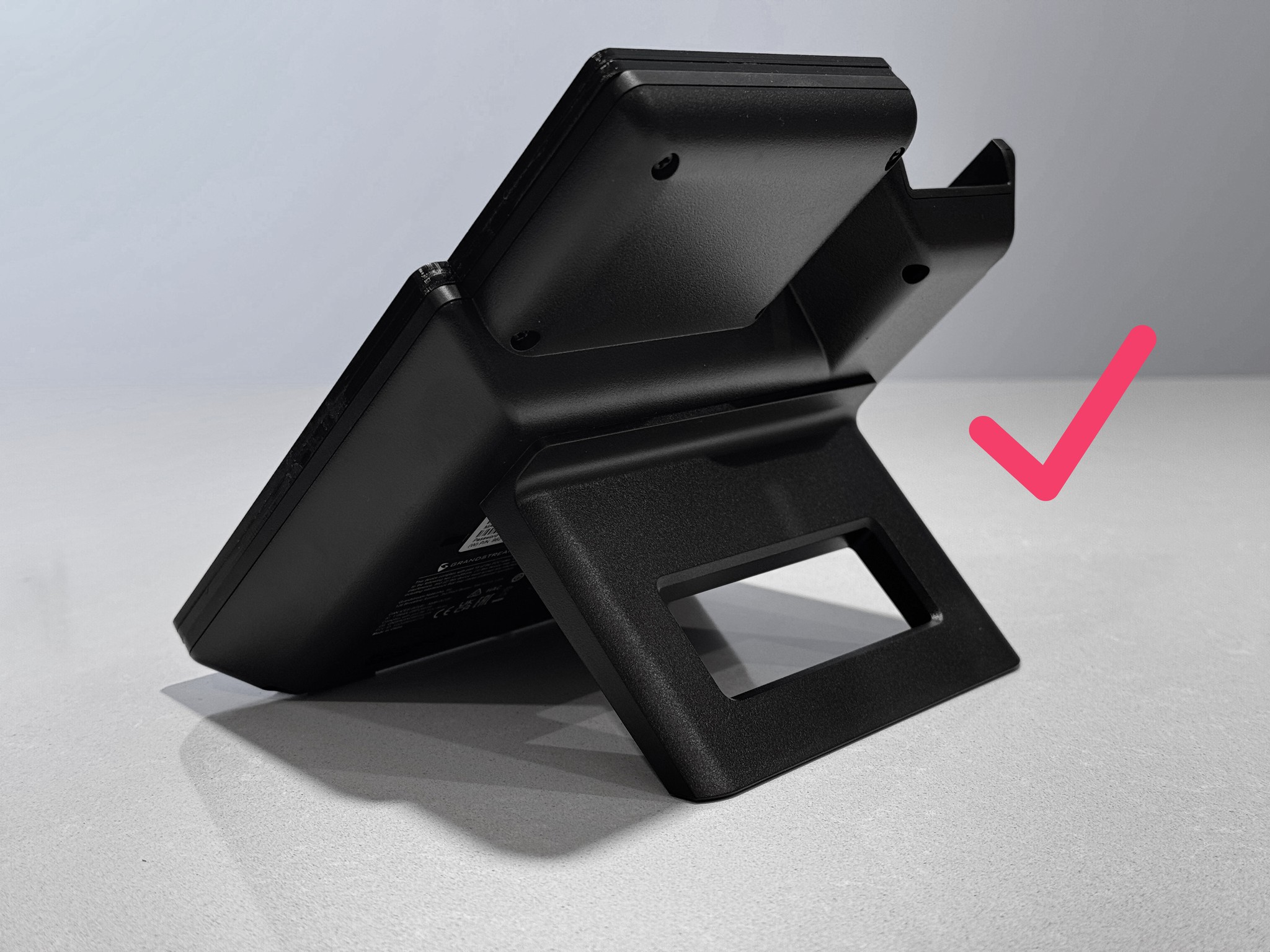
- Slide the phone stand from the left into the slot provided until it is securely fixed.
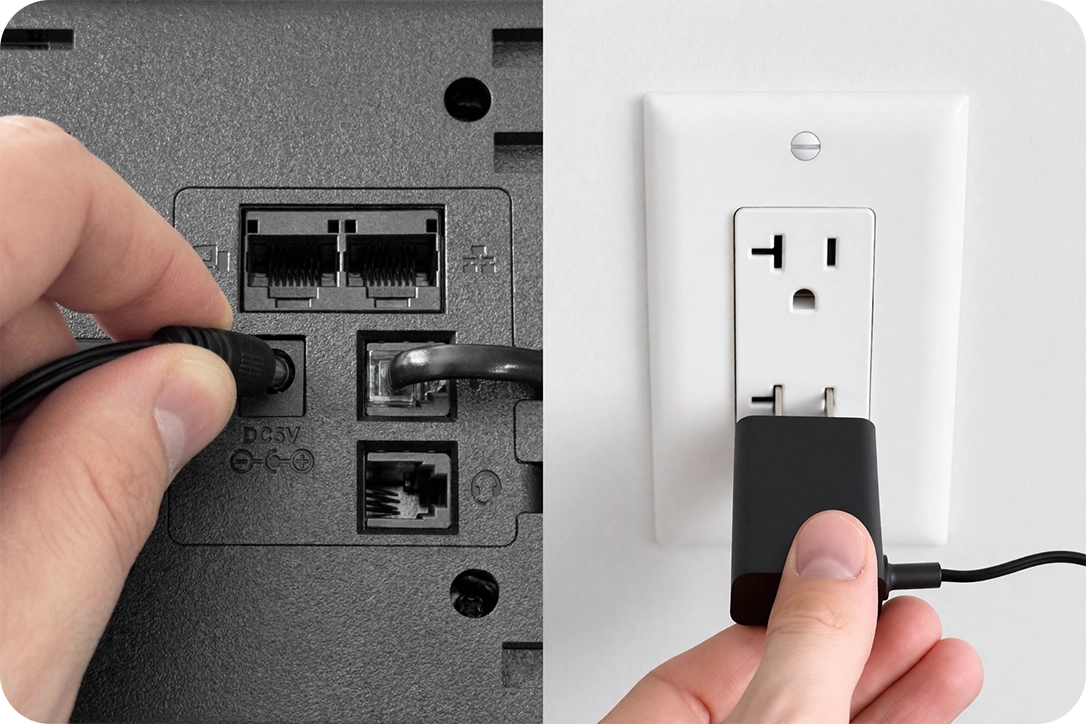
- Plug the Power Cable into the back of the phone, and plug it into the power outlet.
- Pick up the handset to talk with the AI companion.
Troubleshooting
If you don't hear the AI companion when you pick up, the phone may not be connected to the Internet.
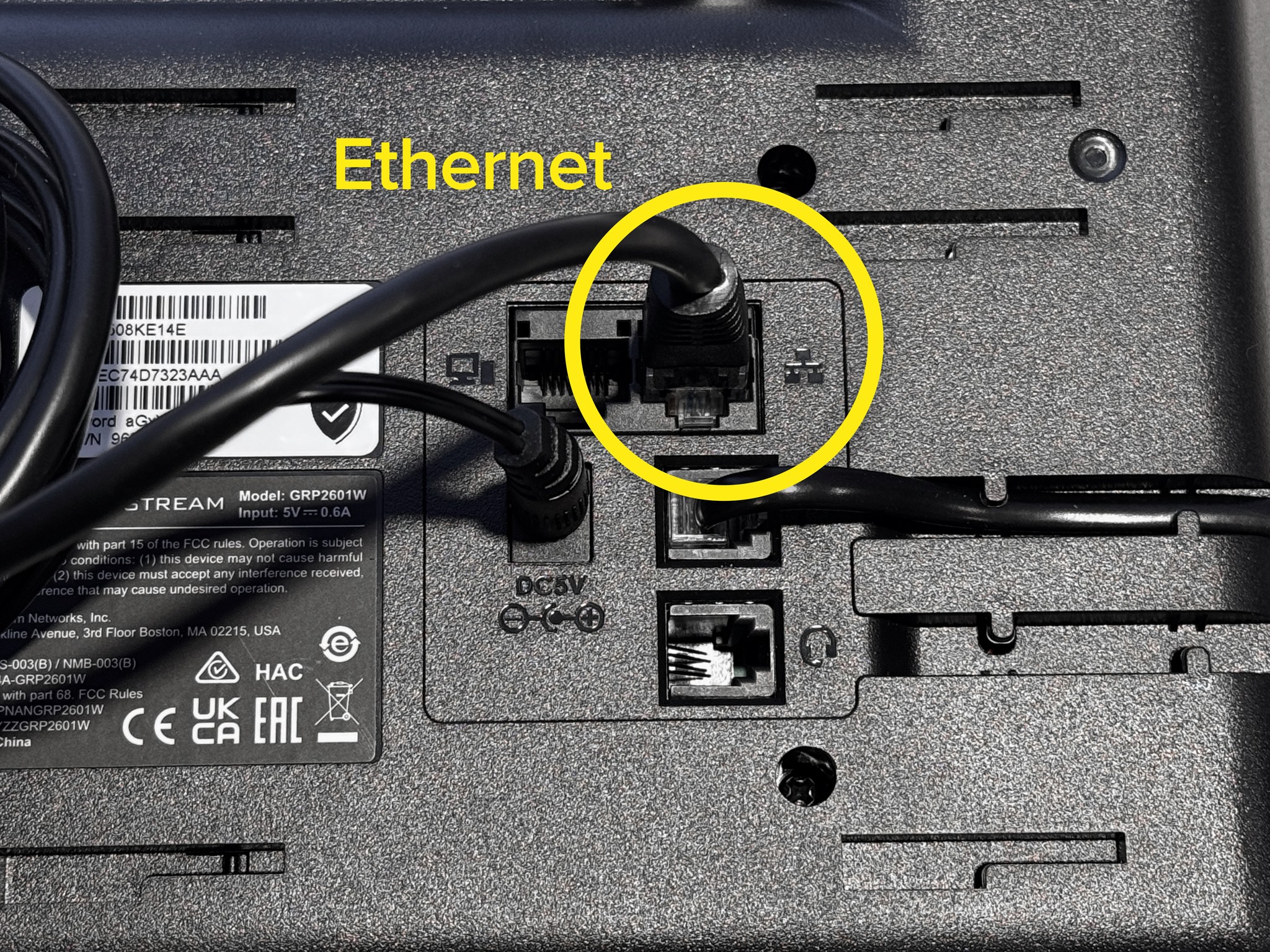
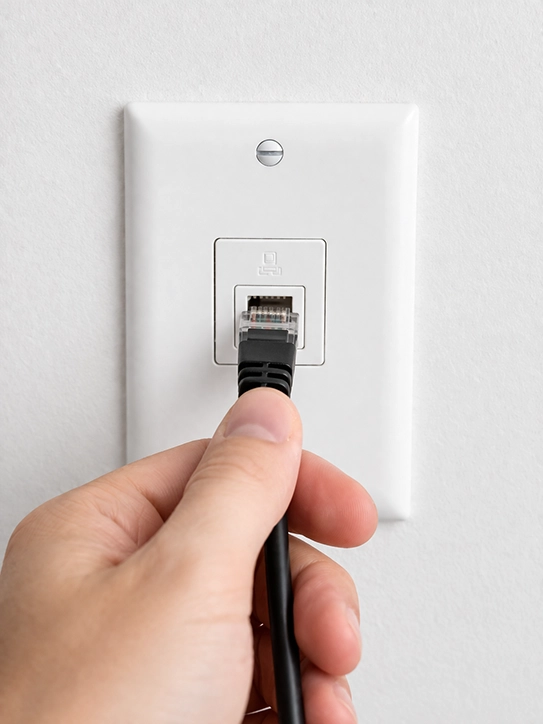
Option 1: Connect an Ethernet cable
The port is located on the right, above the handset port.
Option 2: Remove the plate and enter the Wi-Fi password manually
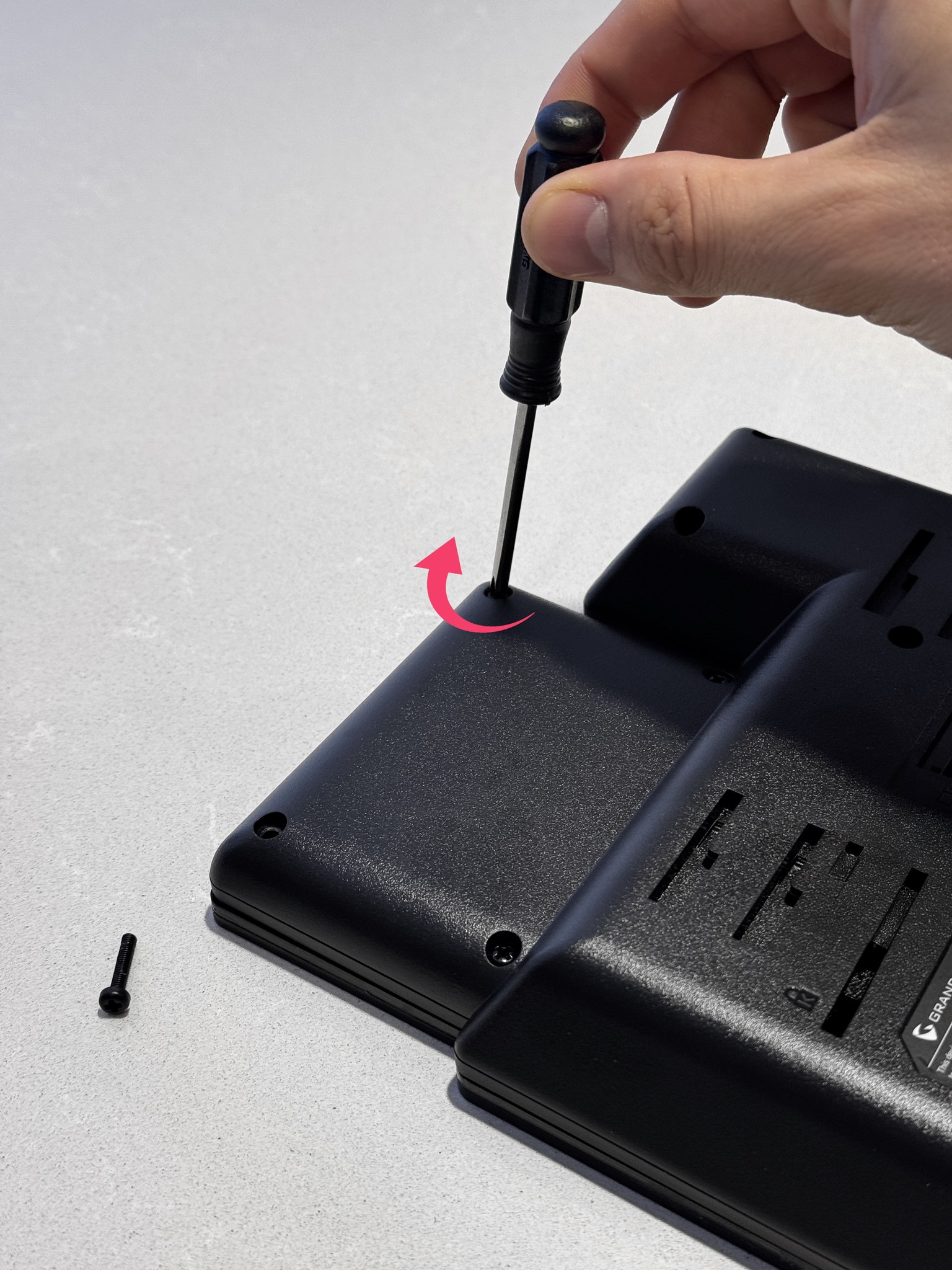
Using a screwdriver, unscrew the 4 pink screws located on the back of the phone.
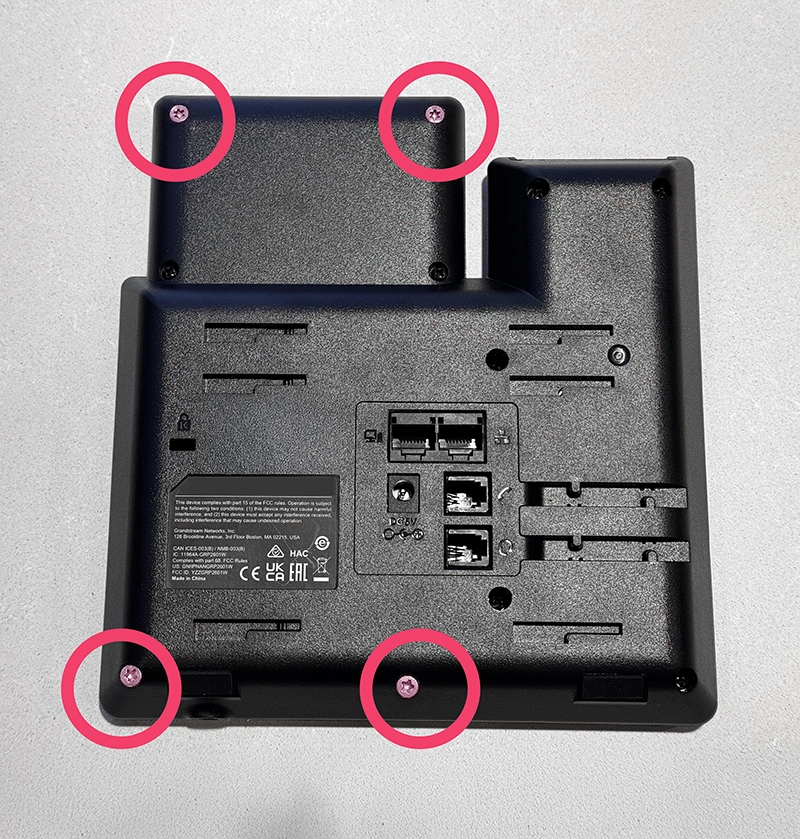
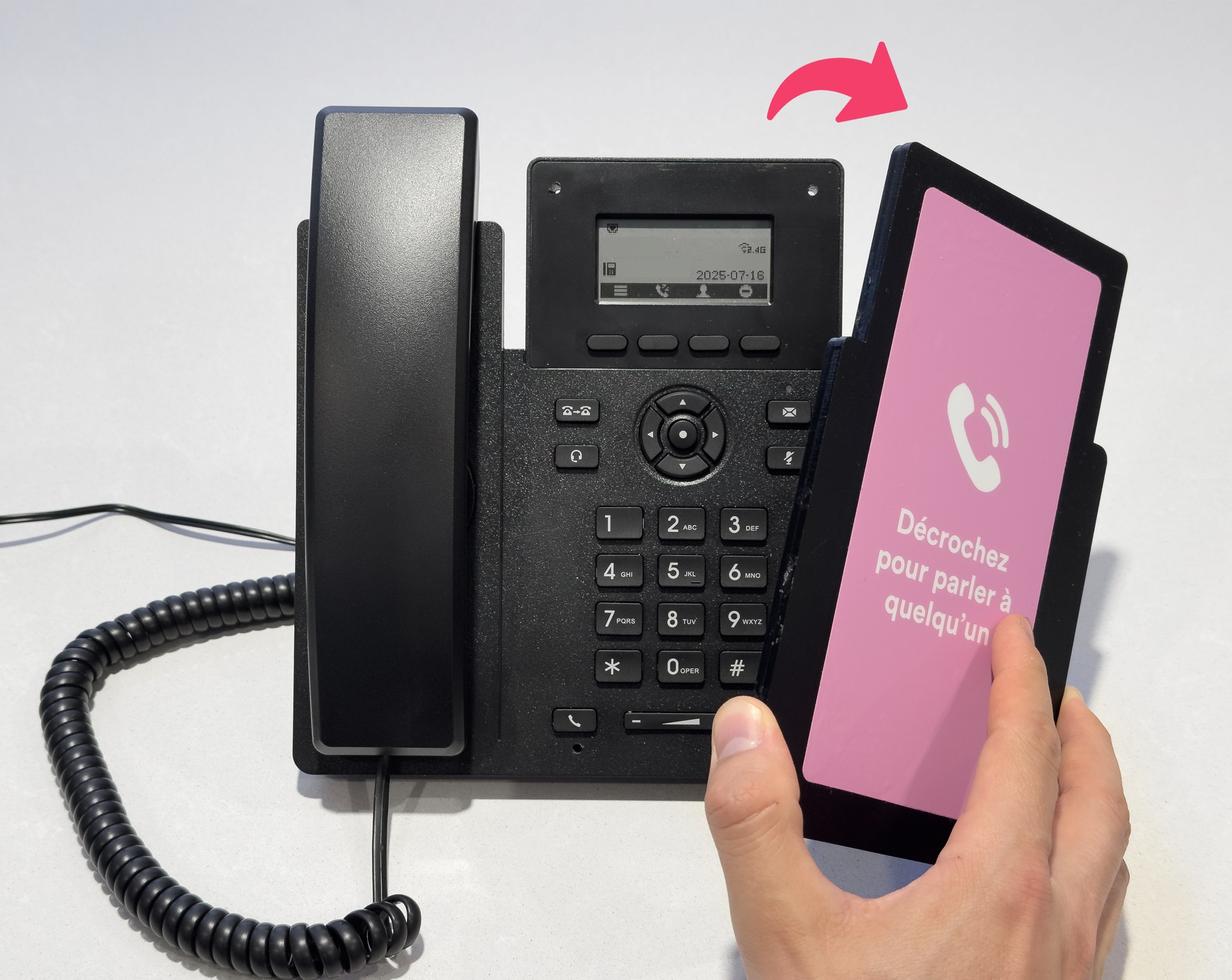
Remove the plate to access the screen and buttons. If the screen is off, this means the phone is not powered. Check that it is properly plugged in.
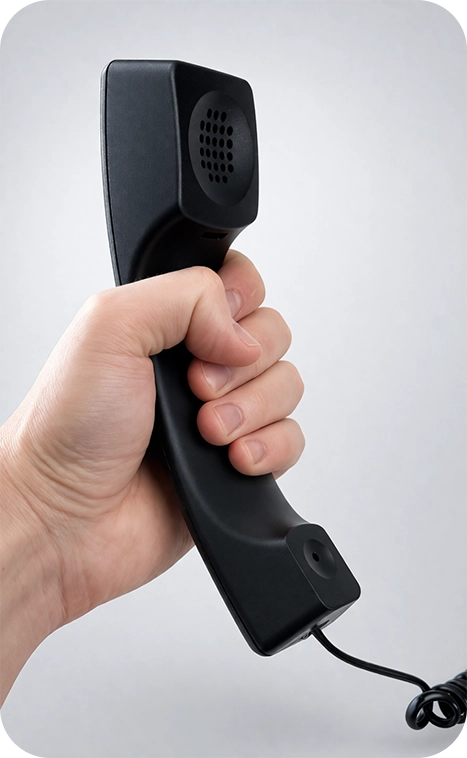
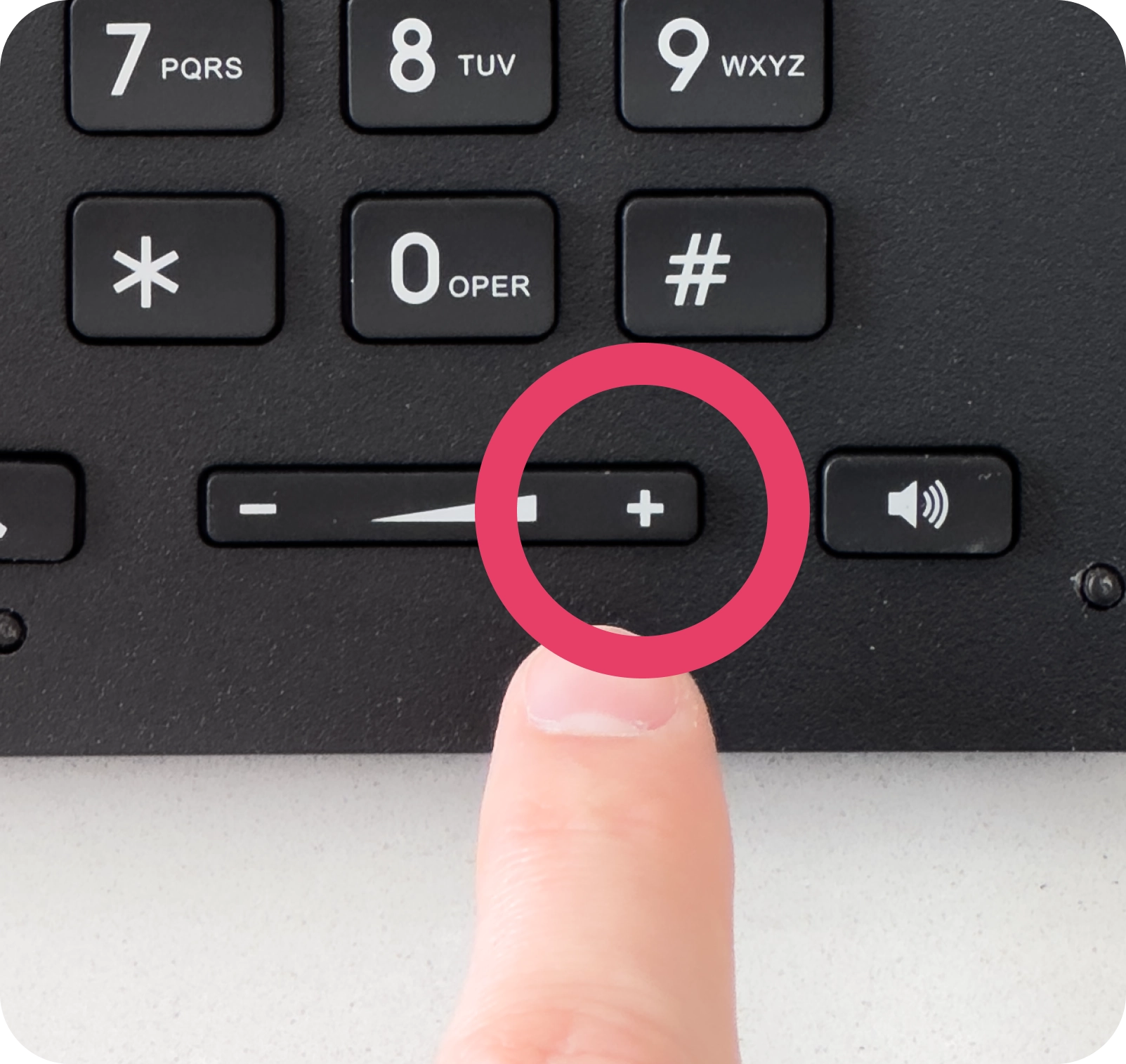
While the cover is removed, let's turn the volume all the way up. Pick up the phone. Then press the ➕ button until all the bars are filled on the screen. The phone must be off the hook for this to work.
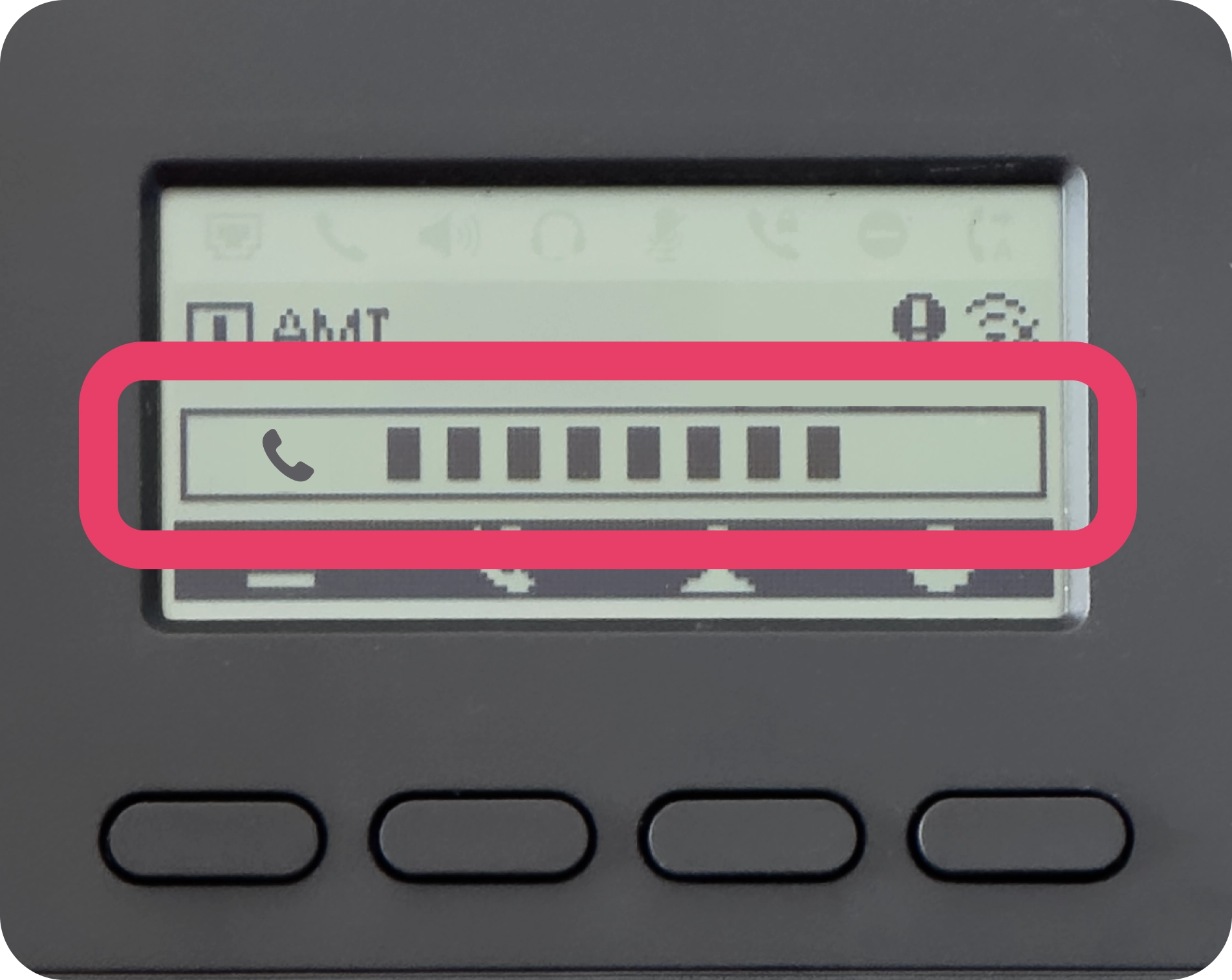
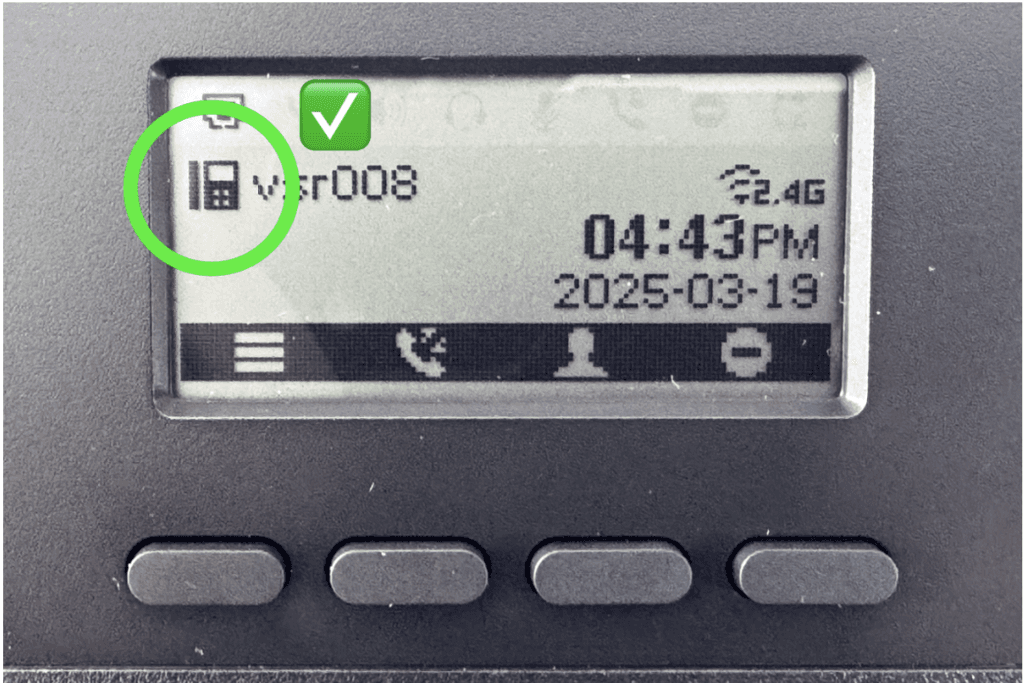
The screen should be on and display a ☎ phone icon. This means the phone is properly connected to the Internet.
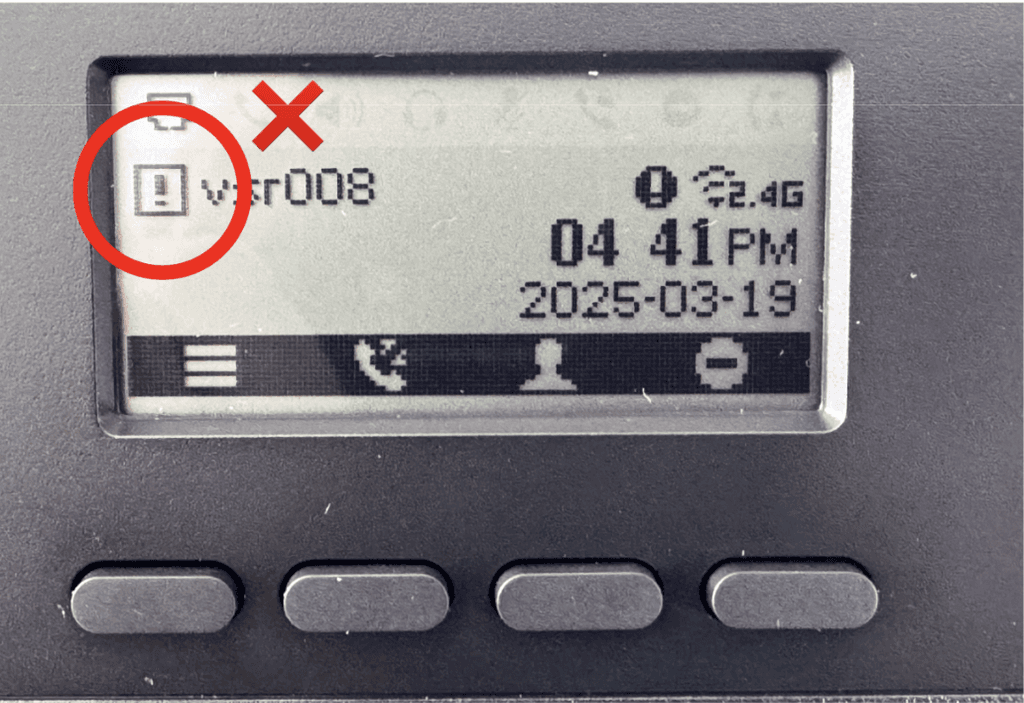
If the screen displays a ⚠️ icon with an exclamation point, the phone is not connected to the Internet. Often, this is because the Wi-Fi password is incorrect.
Configure Wi-Fi
Here's how to manually configure Wi-Fi.
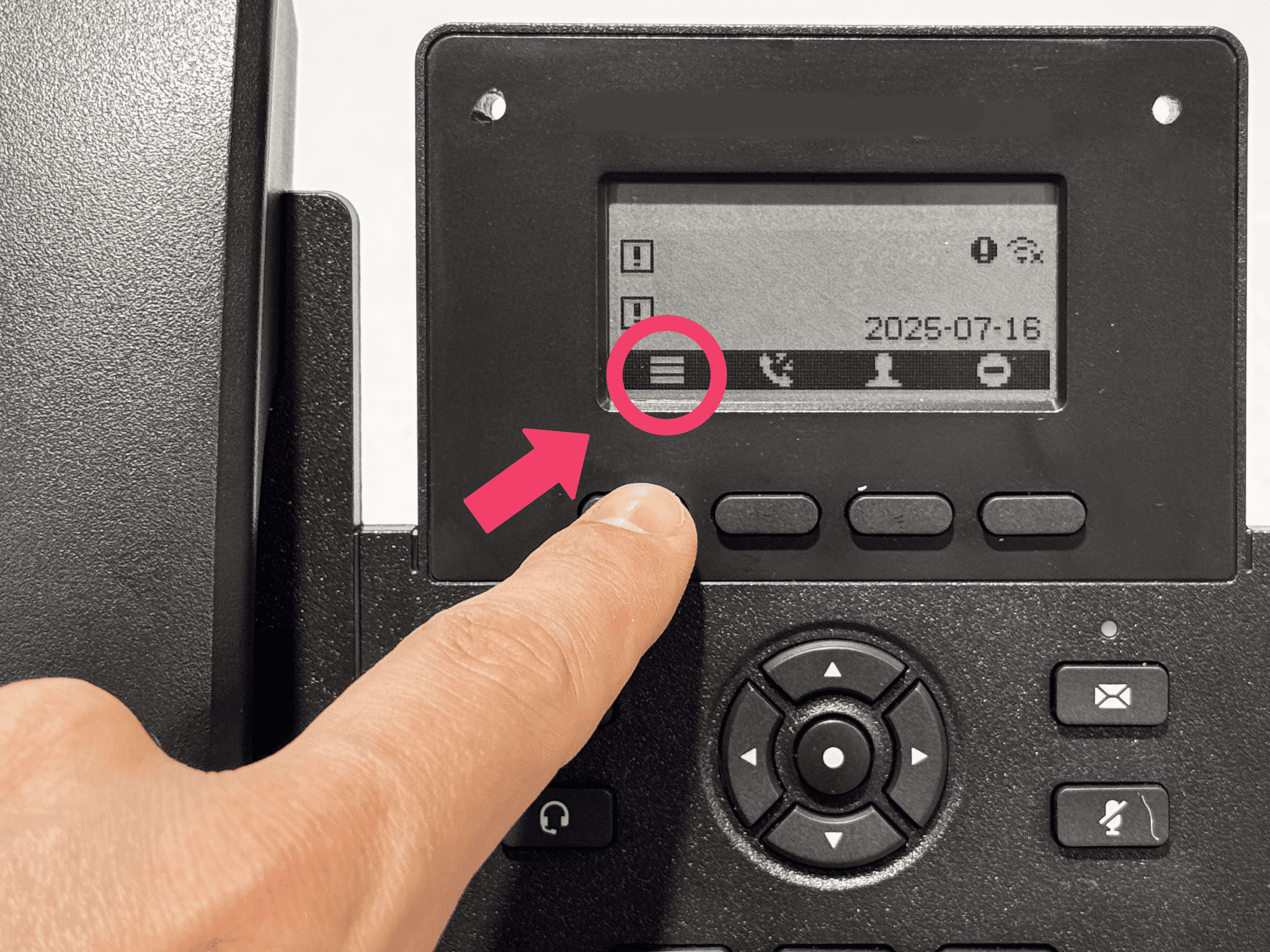
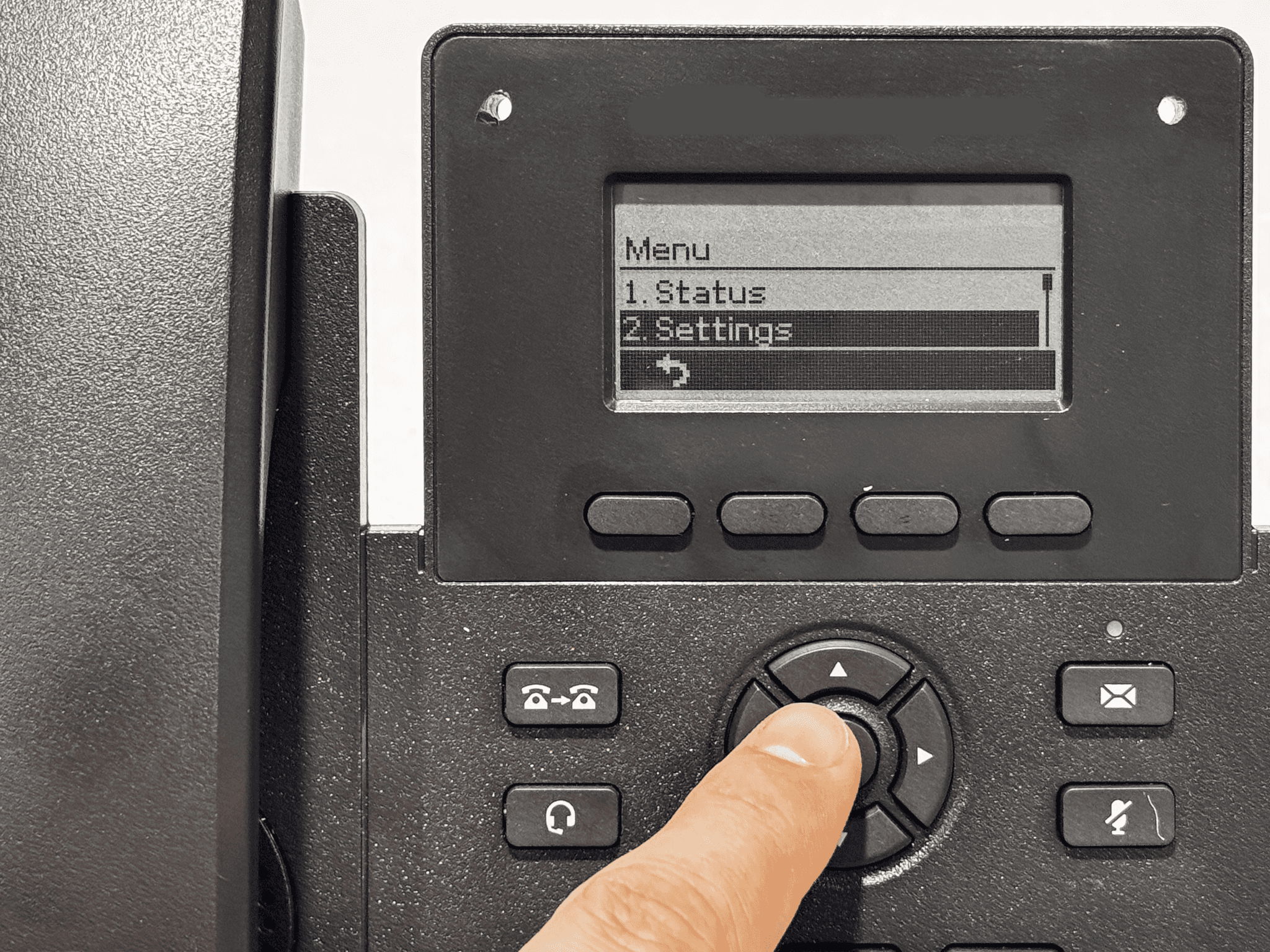
- Press the left button to access the menu. Use the arrows to go to 2. Configurations > 6. WiFi Settings > 3. Wi-Fi Network
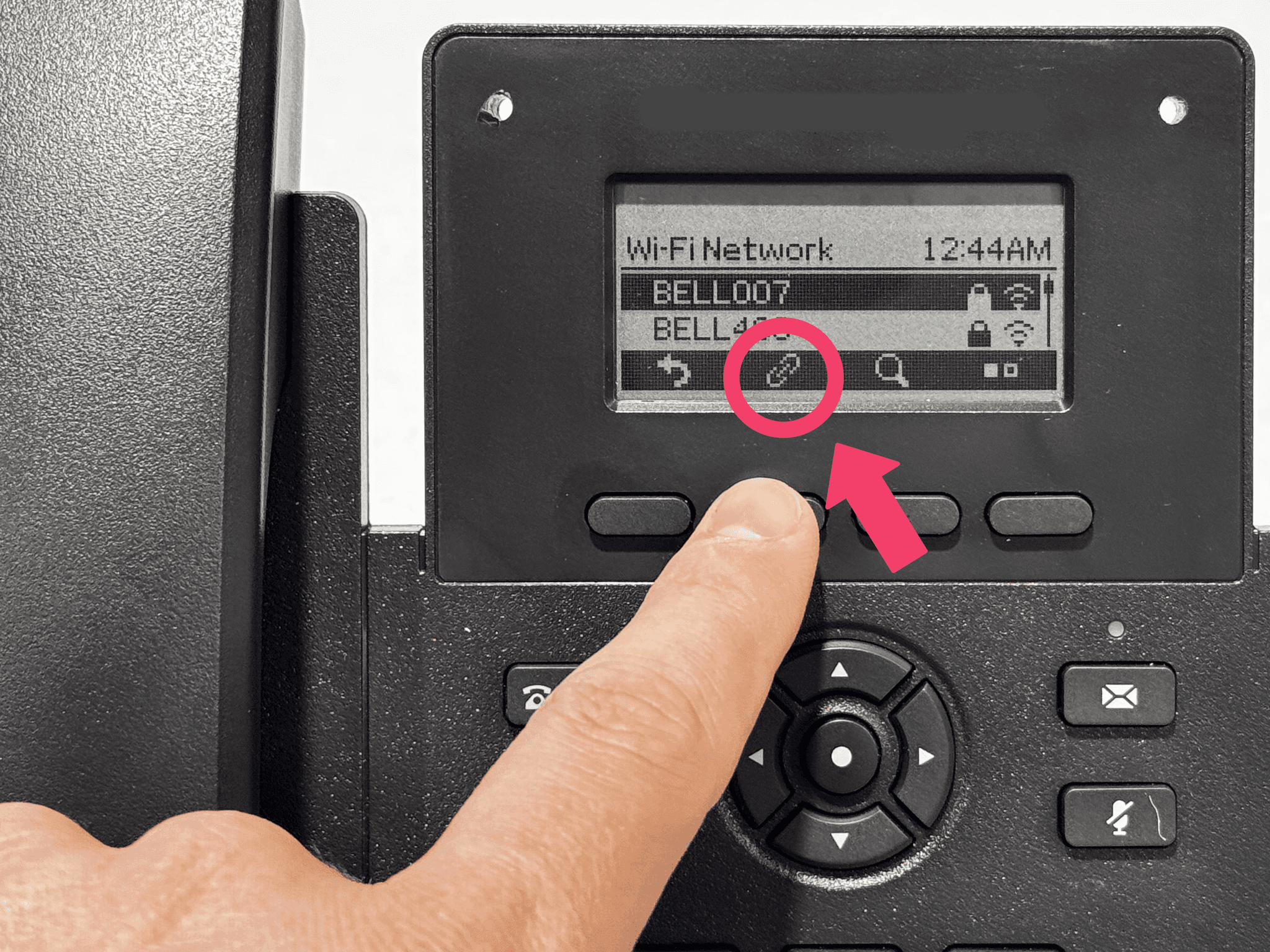
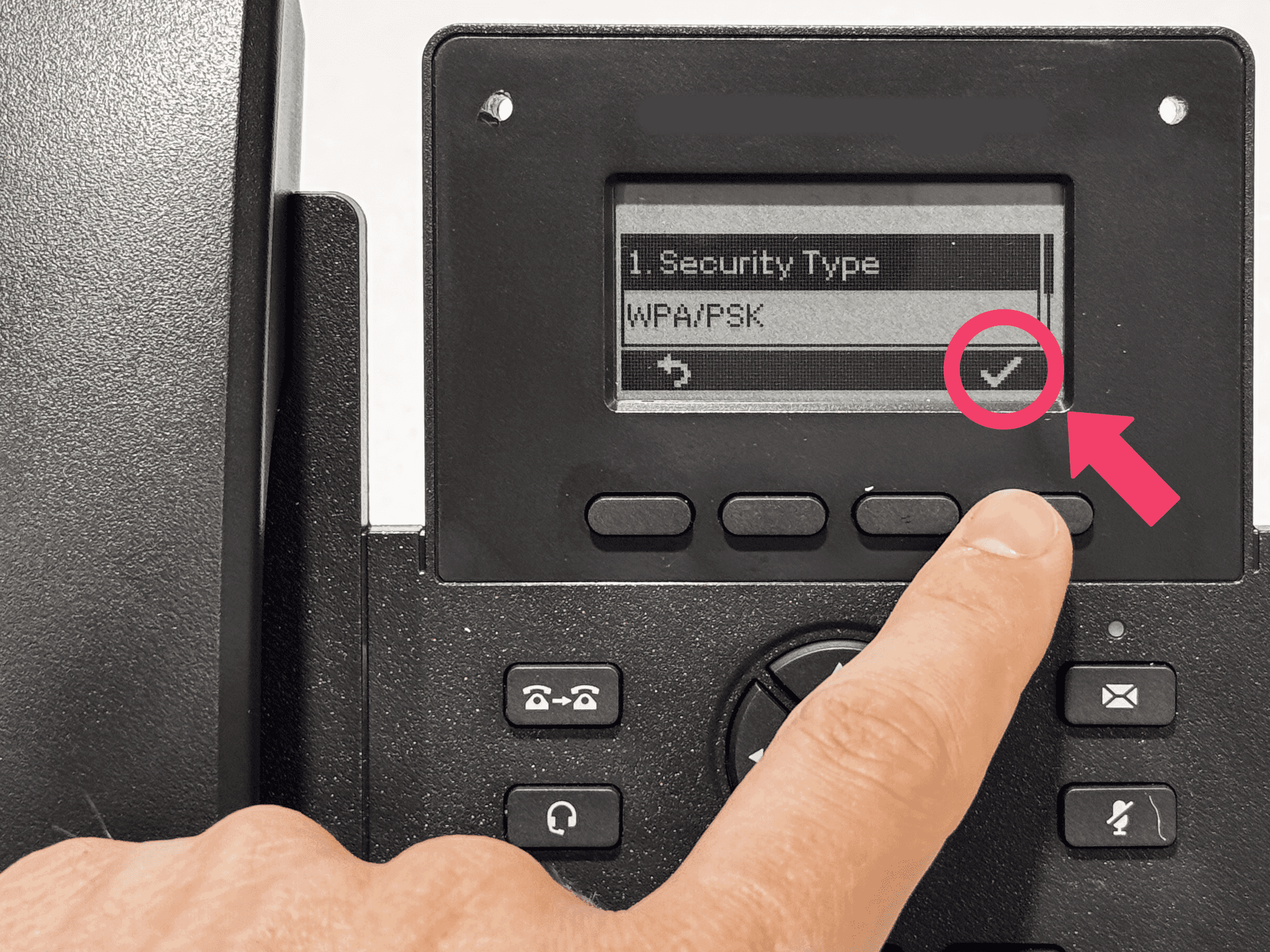
- Find your Wi-Fi network name, then press the 📎 paperclip button to enter the password. Skip the "Security Type" question by simply pressing the ✔️ button on the right.
- Enter your Wi-Fi password by pressing the buttons 1 to 9 multiple times.
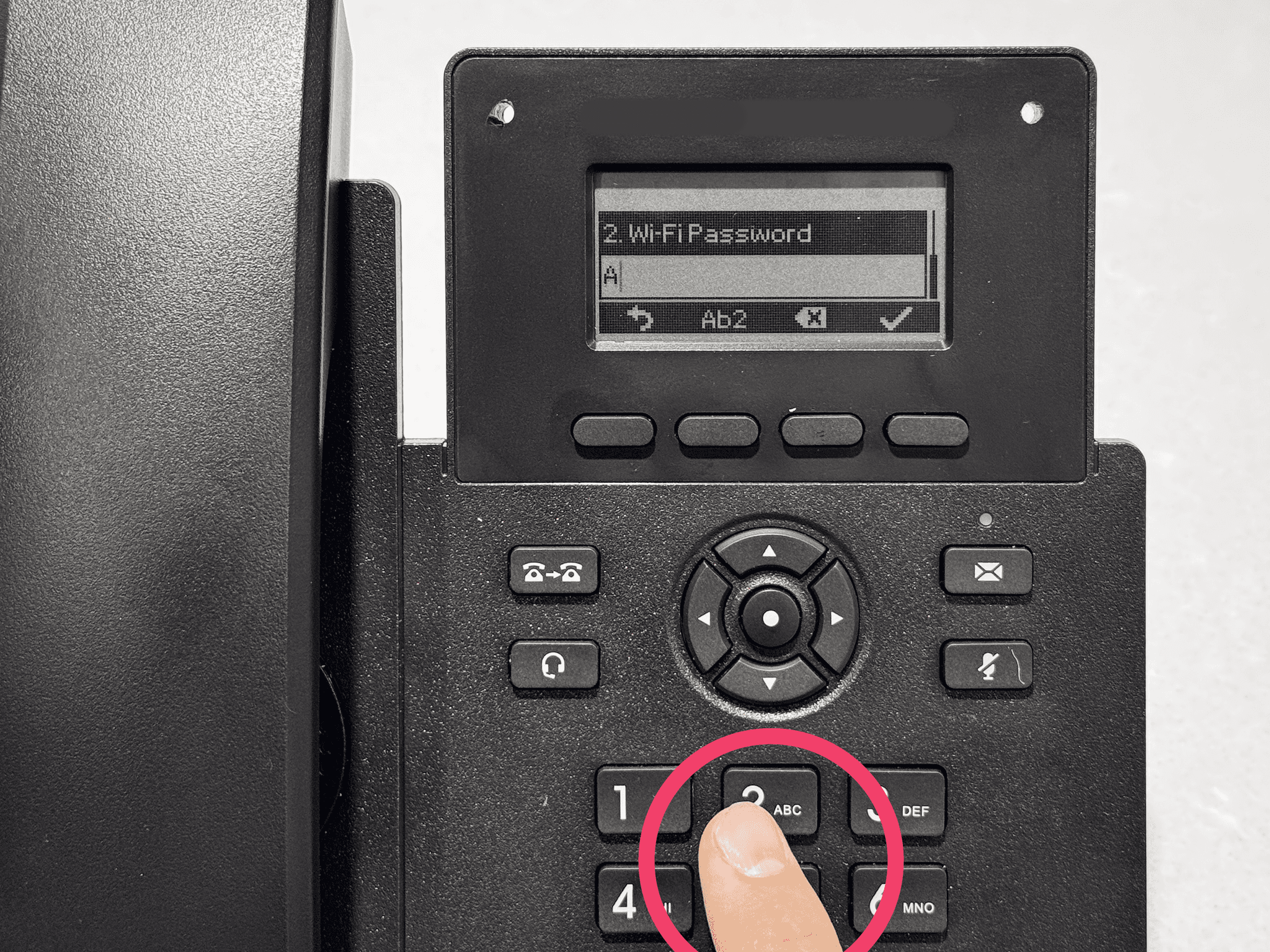
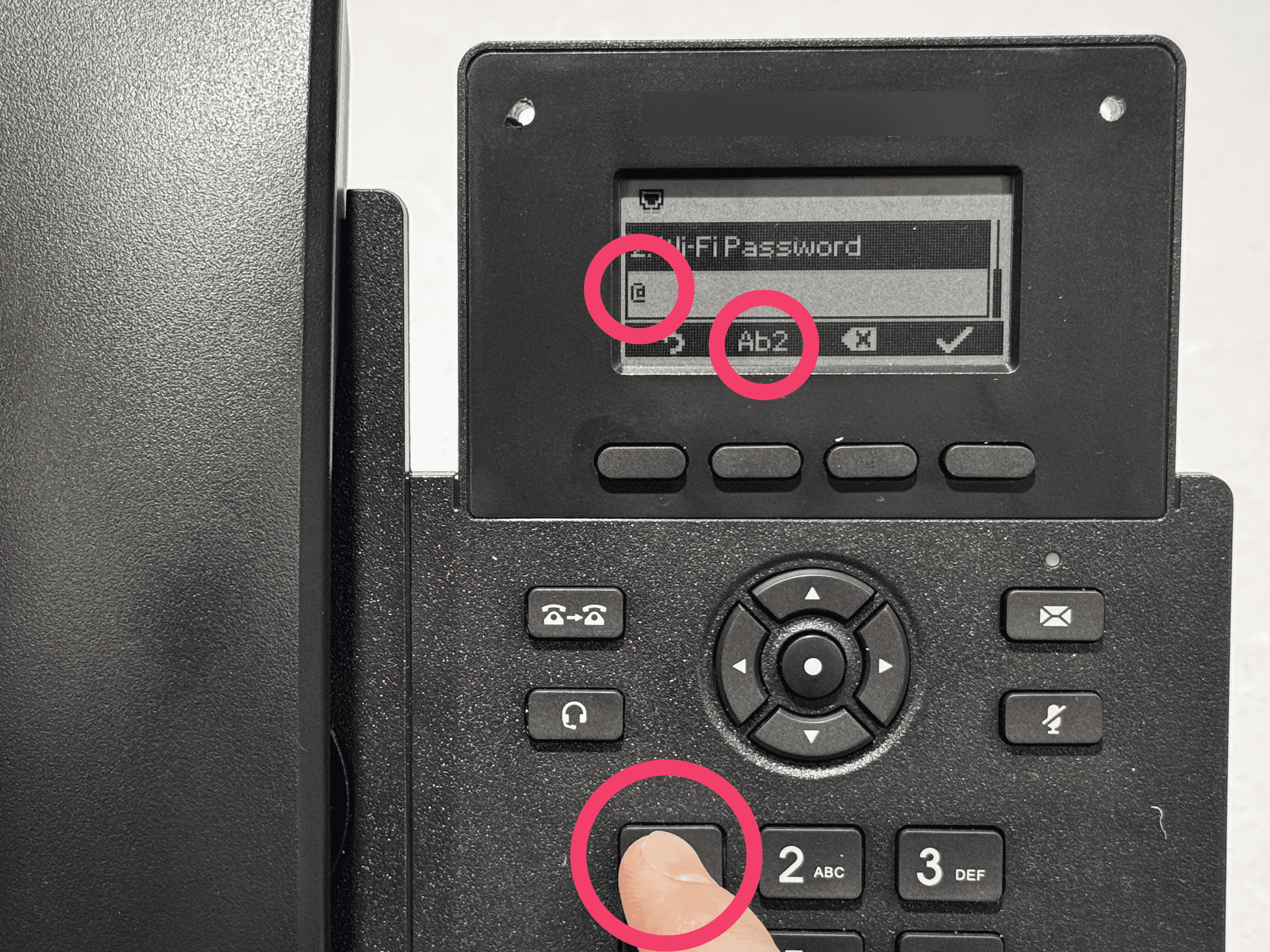
- You can change the input mode (Mixed, UPPERCASE, lowercase, numbers) by pressing the Ab2 button multiple times.
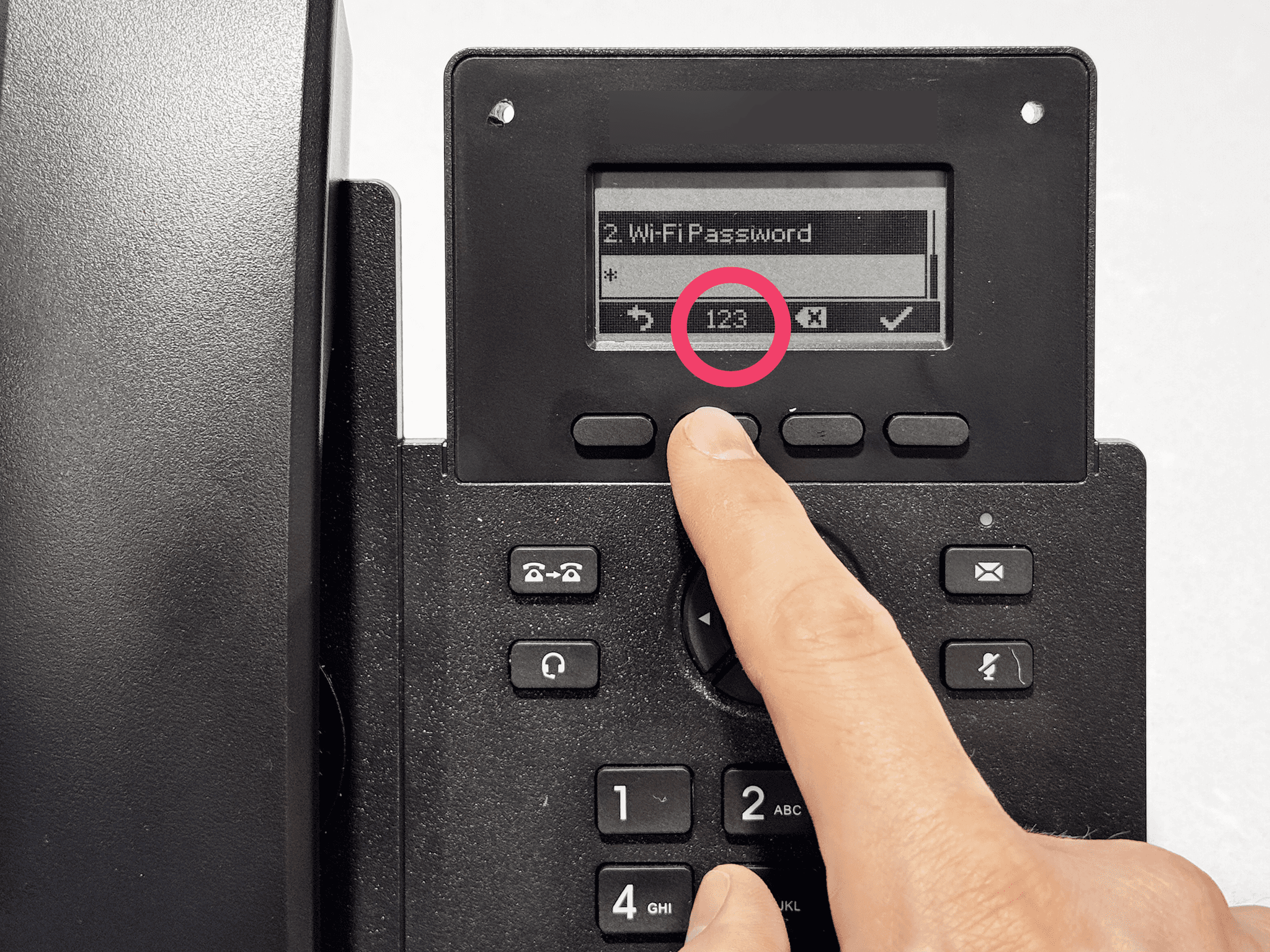
- To type special characters like @ ? $ #, stay in Ab2 mode and press the 1 key multiple times.
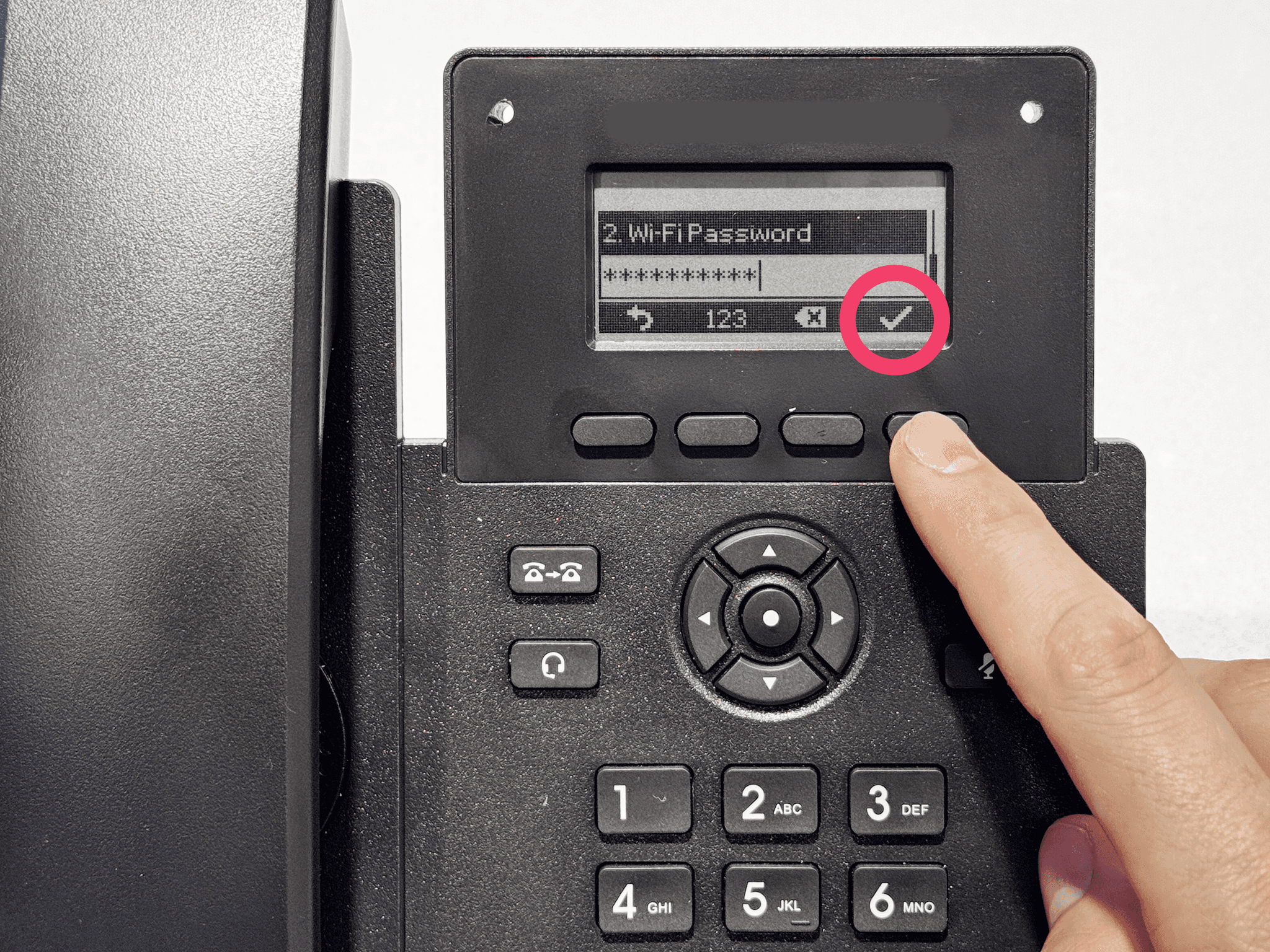
- Press the ✔️ button once the password is entered. The phone should connect.
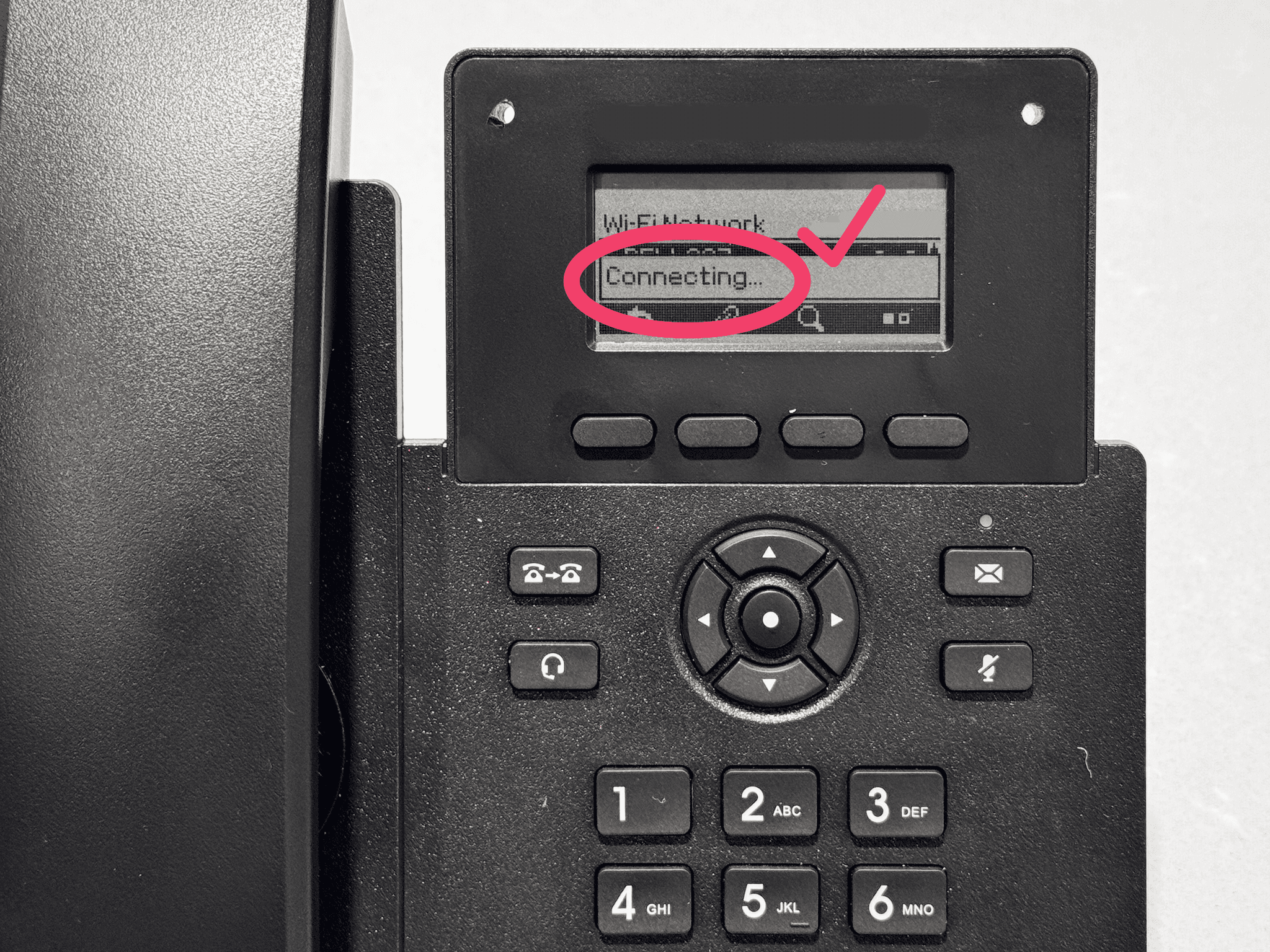
If the screen displays the ☎ icon, but you still don't hear the AI companion, even after waiting 10 minutes, contact us at [email protected].
Authorize the device on your network
If you have questions or need help with Wi-Fi setup, check out our dedicated networking page here.