Amical Portal Guide
Sign in to your client portal
The portal allows you to:
%22 height=%2232px%22 id=%22r3FnSHSnb%22 width=%2232px%22/%3E%3C/svg%3E)
View call history and notifications for detected issues
Change the companion's voice, name, and language
Trigger or schedule companion calls
Manage payments and billing
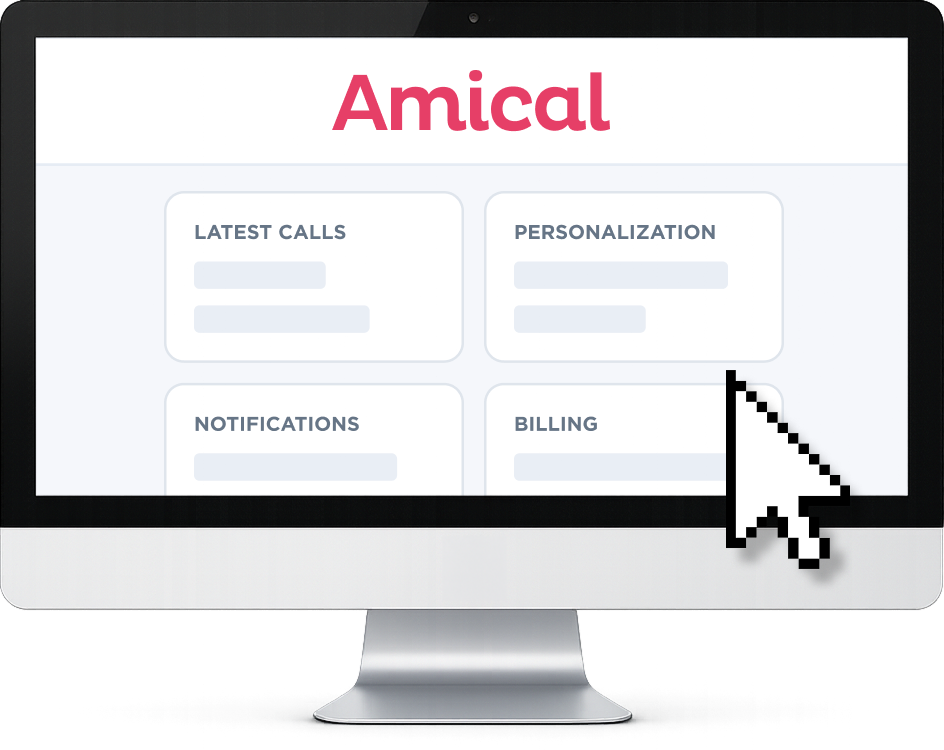
Portal demo video
Watch the Amical portal demo.
Download the PDF guide
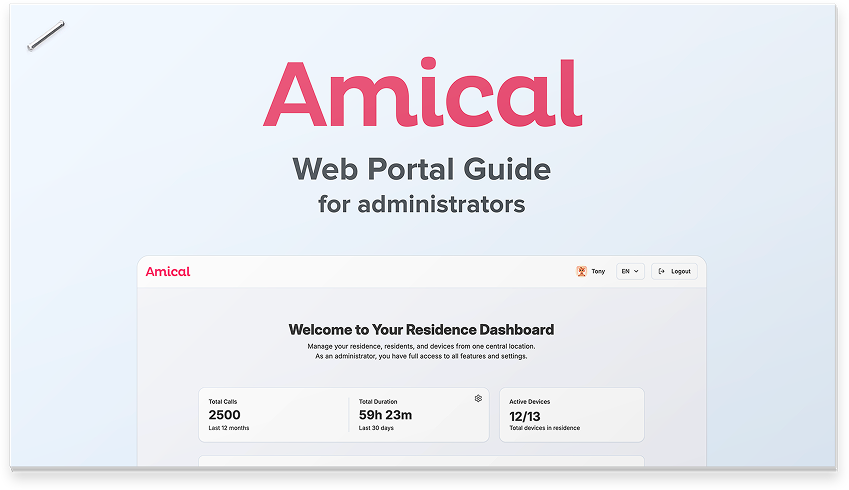
Activate the phone and access the portal
With your subscription, you have access to the Amical portal. The portal allows you to:
- Receive important notifications
- Personalize the AI companion
- Manage your devices
- View call history
- Add staff or family members
- Manage your subscription
To get started, visit 👉 app.amical-ai.com
The setup process usually takes less than 5 minutes.
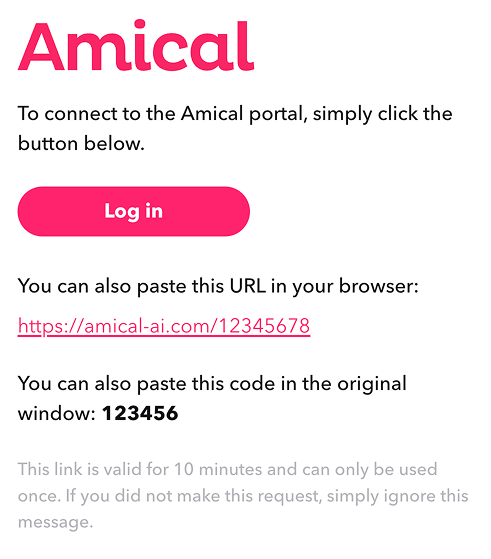
You can sign up or sign in with Google, Facebook, or just with your email address.
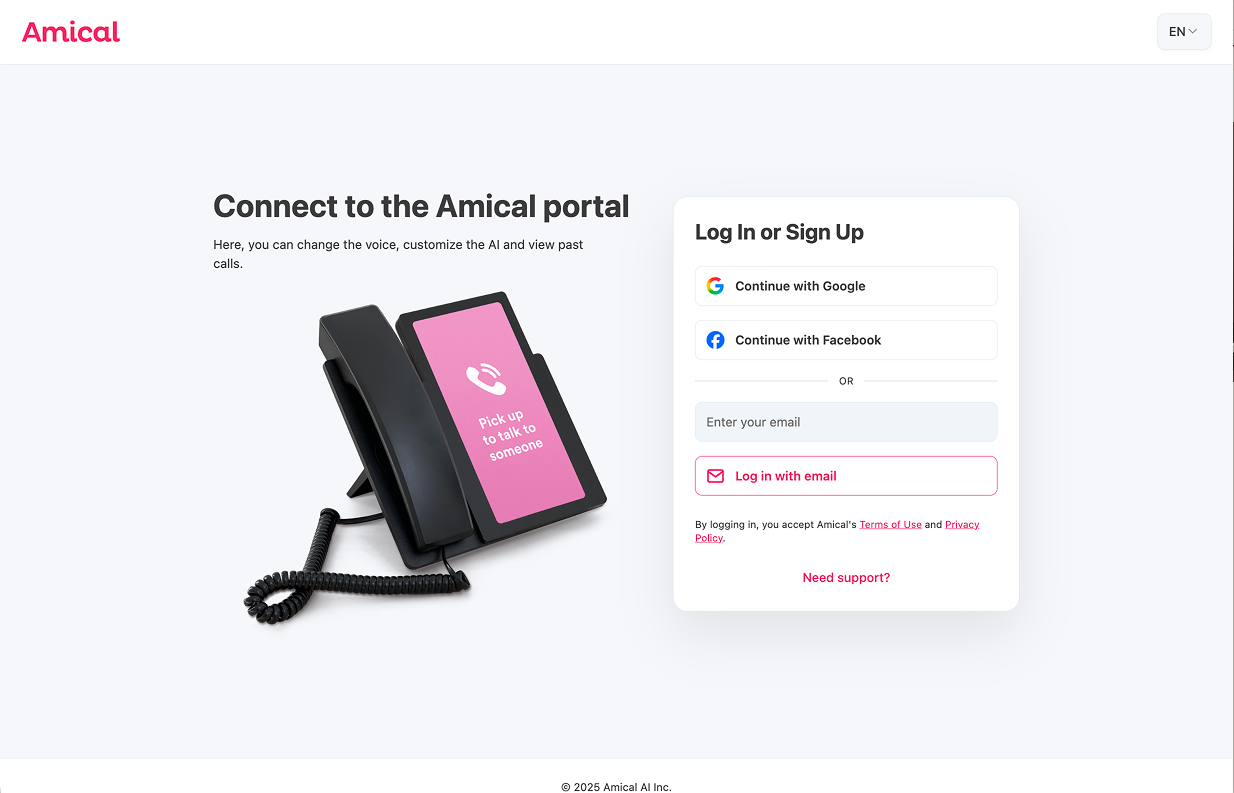
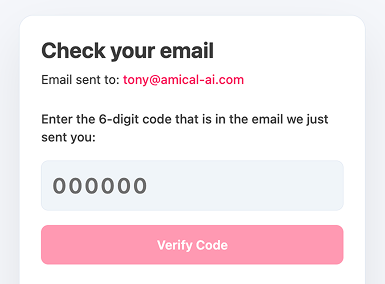
You will then receive an email containing a login code that lets you access the Amical portal.
⚠️ If you don't get the email after a few minutes, please check your spam folder.
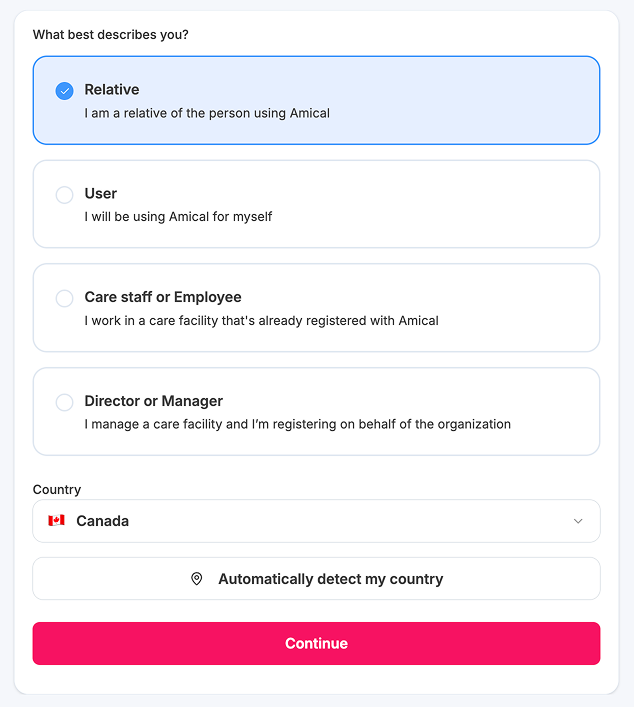
If your account has never been created before, a short 4- or 5-step setup process will guide you based on your situation.
You will be asked to:
- indicate whether you are a family member, user, staff member, or administrator;
- enter the information of the person who will be using Amical;
- add your contact information and address (for shipping additional phones or replacement parts if needed);
- and complete a few additional details.
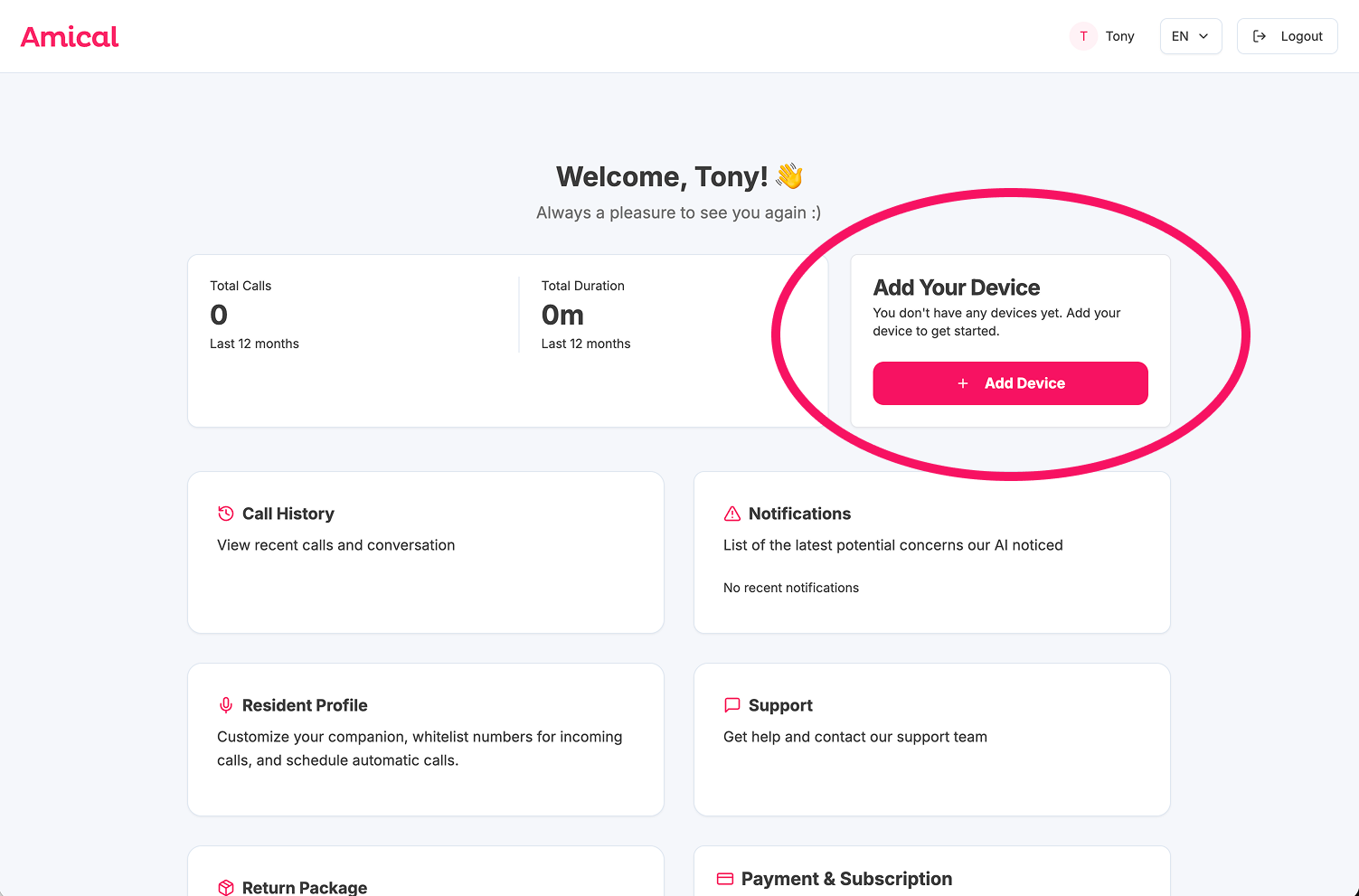
Link my device to my account
Finally, all that's left is to link your device to your account to access the features available through the portal.
Click on "Add a Device".
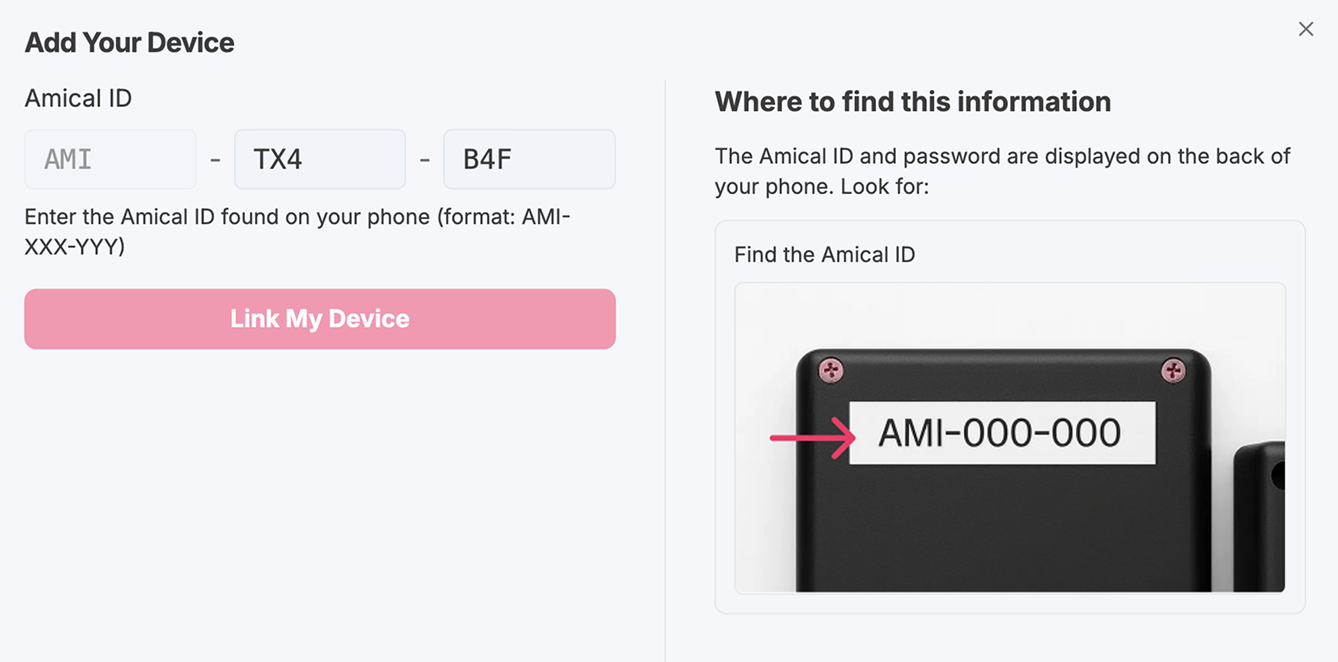
You can then add your phone by entering the AMI code located on the back of the device.
Once your device has been linked to your account, you can start using the features of the Amical portal. 🙂